Task understanding
Translate natural-language goals into task signals before matching products.
A square post with a checked image, real text and a readable export.
Start step one ↓My learning →Prompt library →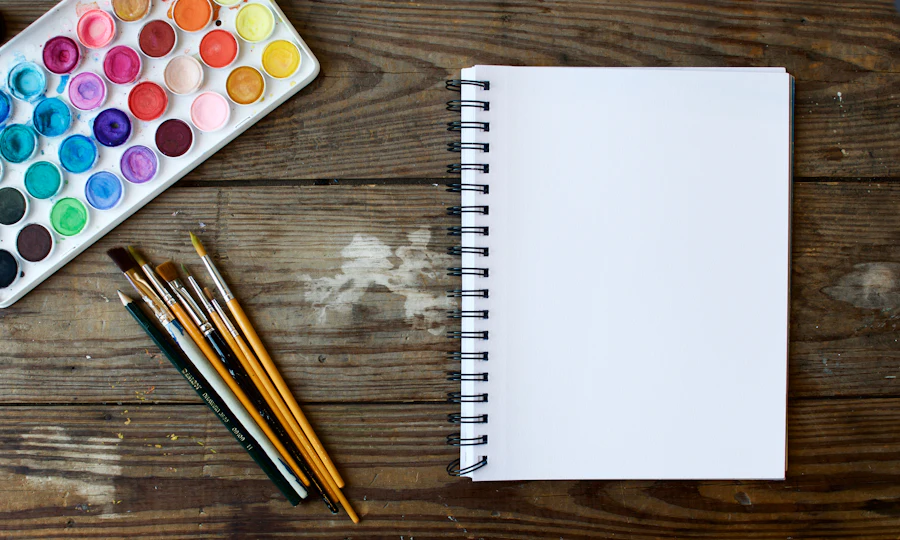
A permitted image and a free design editor such as Canva or Photopea. Use a sketch or your own photo if image credits are unavailable.
These guides are free. Use the free/manual route for practice; optional upgrades are your choice. Account access and app screens can vary.
Choose one starting tool. You do not need every product here. Check its current plan before starting; these are editorial matches, not measured product rankings.
Start here for a text-to-image practice; check the chosen model and available credits.
For adding real, editable words and exporting a readable graphic.
For an alternative image/vector workflow. Free images are public and not licensed for commercial use.
0 of 3 steps checked
The picture supports the message. It does not need to carry all the information.
Fictional practice graphic
Message: Try a five-minute sketch
Headline: Start with one simple shape
Image: Pencil and mug, empty space at top
Action in caption: Save this exercise
Editable text is easier to correct and reuse than lettering baked into a generated picture.
Layout check
One headline
One main illustration
Readable colours
No important words touching the edges
Essential facts repeated in the caption
A successful editor preview does not guarantee the downloaded version is right.
Finish record
Downloaded file opened: Yes / No
Phone readability: __
Image permission checked: __
Editable copy saved: __
One change for next time: __
That is your three-step guide. Keep practising, or try the next level when you feel ready.
THE OTHER FEW — Turn an AI image into a readable social graphic
Level: intermediate
https://theotherfew.co.uk/learn/start/images/intermediate

STEP 1: Plan the image around the message
The picture supports the message. It does not need to carry all the information.
1. Choose one message and write a short headline. Decide where the headline will sit.
2. Create or choose an image with empty space in that area. Check its rights for your intended use.
3. Keep dates, prices and names as editable text in the design editor rather than asking the image generator to draw them.
EXAMPLE
Fictional practice graphic
Message: Try a five-minute sketch
Headline: Start with one simple shape
Image: Pencil and mug, empty space at top
Action in caption: Save this exercise
SELF-CHECK: My layout plan gives the headline enough space.

STEP 2: Add accurate text in an editor
Editable text is easier to correct and reuse than lettering baked into a generated picture.
1. Create a blank square design in your editor. Add the permitted image as the background or main illustration.
2. Type the headline yourself. Use a plain font, good contrast and space around the edges.
3. Preview at phone size. If the headline disappears into the picture, simplify the image or add a solid text panel.
EXAMPLE
Layout check
One headline
One main illustration
Readable colours
No important words touching the edges
Essential facts repeated in the caption
SELF-CHECK: The headline is readable at phone size and matches my intended message.

STEP 3: Export and inspect the actual file
A successful editor preview does not guarantee the downloaded version is right.
1. Export using a free option such as PNG. Replace paid assets if the editor asks for an upgrade.
2. Open the downloaded file on a phone. Check the crop, spelling and any unexpected watermark.
3. Save an editable copy, the source prompt and the usage-rights note so you can make a second post consistently.
EXAMPLE
Finish record
Downloaded file opened: Yes / No
Phone readability: __
Image permission checked: __
Editable copy saved: __
One change for next time: __
SELF-CHECK: I opened my export and kept an editable version for reuse.

Self-review only; this is not a qualification.
Saved only in this browser when storage is available. Clearing browser data removes it.
Ready to build on this? You can move up when you feel comfortable with these steps.
Try Advanced images →Our examples and practice tasks are original. These references support the platform instructions. Checked 17 October 2026; screens and account features may change.
Workspace and creative photography from Unsplash.
Explore AI tools, software and technology through official sources, clear trade-offs and practical comparisons, so you can find the few that matter to your task.
Recently added to our catalogue, with a reason to explore each one.
Editorial alternatives with a specific reason to consider them.
Describe the outcome, not the software. The Other Few turns the job into a practical stack, keeps overlaps visible, and explains the trade-offs.
We'll break it into jobs, choose the fewest sensible tools and show the trade-offs.
The shortlist now explains the fit, the trade-offs and what to do next.
Translate natural-language goals into task signals before matching products.
Show why a tool fits this search instead of presenting a permanent product score.
Move naturally from shortlist to profile, alternatives, compare and saved tools.
Browse editorial collections when you want to explore rather than solve one task.
The recommendation layer connects tasks, constraints, products, alternatives, workflows and evidence without turning the catalogue into a popularity ranking.
These are the relationships the engine can reason over as the catalogue grows.
With your permission, we use Google Analytics cookies to measure visits and interactions, such as page views, project progress, downloads and link clicks. This sends usage information to Google. You can reject analytics and still use the site, or change your choice using Analytics settings at the bottom of any page.